 MotionBridge
An alternative to Adobe's Dynamic Link connecting DaVinci Resolve and After Effects
Adobe After Effects 2025+ | DaVinci Resolve (Studio required for V19.1+)
Key Features
Composition Linking
Bidirectional links between AE comps and DaVinci timeline nests
Marker Synchronisation
Share editorial notes, animation timing marks, and comments between apps
Smart Render Management
Render in one click from After Effects with templates, then refresh renders in DaVinci in one click
Project Organisation
Each project maintains its own motionbridge folder with auto-organised bins/folders in apps and on disk
User Interface
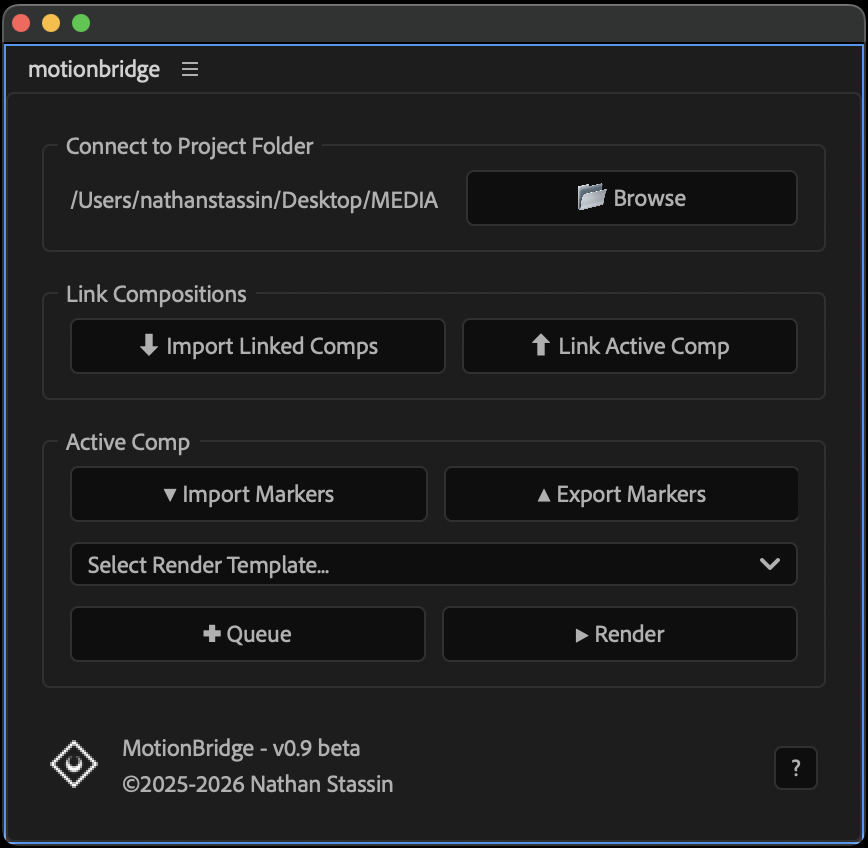
After Effects Panel
Dockable ScriptUI panel with all essential controls for linking, markers, and rendering.
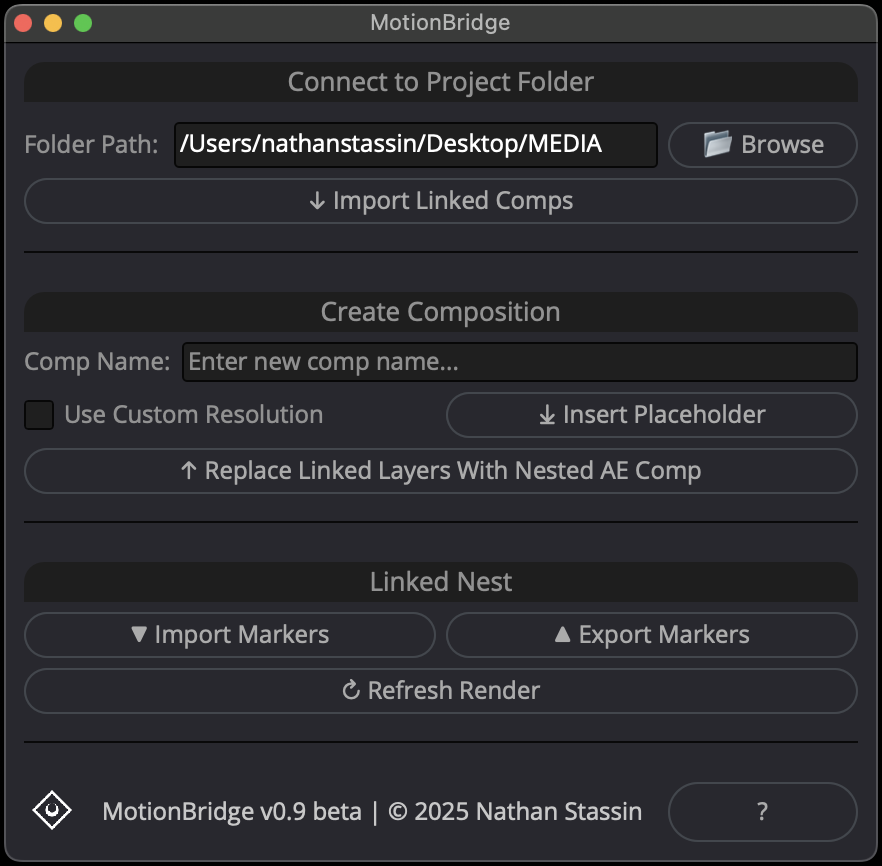
DaVinci Resolve Panel
Matching interface design with mirrored functionality for seamless cross-application workflow.
Installation
After Effects Script
- Download
MotionBridge.jsxfrom the GitHub repository - Navigate to your After Effects ScriptUI Panels folder:
- macOS:
/Applications/Adobe After Effects [version]/Scripts/ScriptUI Panels/ - Windows:
C:\Program Files\Adobe\Adobe After Effects [version]\Support Files\Scripts\ScriptUI Panels\
- macOS:
- Copy
MotionBridge.jsxto the ScriptUI Panels folder - Ensure script permissions are enabled:
- Go to After Effects > Settings > Scripting & Expressions
- Check "Allow Scripts to Write Files and Access Network"
- Click OK
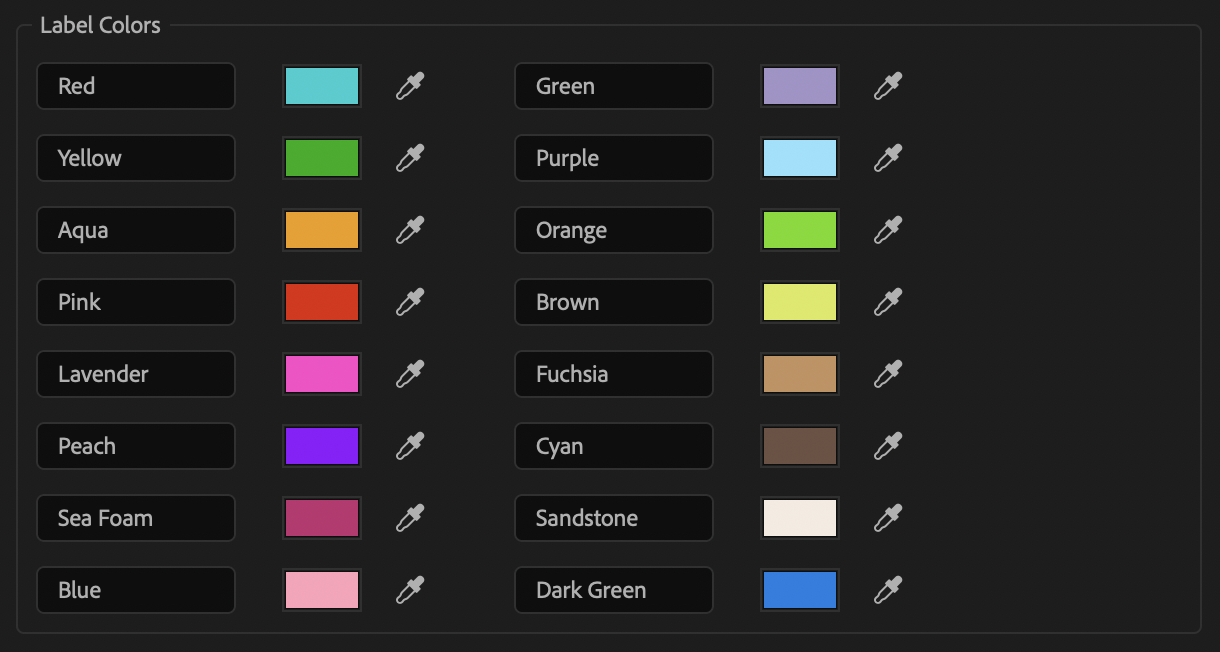
- Optional but helpful: change label colors to match DaVinci
- Go to After Effects > Settings > Labels
- Using color pickers with screenshot, match Label Colors to the below:
- Click OK
- Restart After Effects
- Access via: Window > MotionBridge.jsx
DaVinci Resolve Script
- Download
MotionBridge.luafrom the GitHub repository - Navigate to your DaVinci Resolve Scripts folder:
- macOS:
~/Library/Application Support/Blackmagic Design/DaVinci Resolve/Fusion/Scripts/Utility/ - Windows:
%APPDATA%\Blackmagic Design\DaVinci Resolve\Support\Fusion\Scripts\Utility\
- macOS:
- Copy
MotionBridge.luato the Utility folder - Restart DaVinci Resolve
- Access via: Workspace > Scripts > MotionBridge
How to Use
Getting Started
- Open MotionBridge in Resolve first to initialise project
- Click 📁 Browse and navigate to the current project's MEDIA folder
- Each project creates its own motionbridge folder with subfolders:
- Renders: All renders from After Effects
- Support: JSON file (motionbridge.json) containing link data
Linking Compositions ↑ | ↓
From DaVinci to After Effects:
- In DaVinci, click ⤓ Insert Placeholder where you want the composition to start
- Link video, audio, and/or image media clips from timeline to the placeholder clip
- (Select Clips > R-click > Link Clips)
- Please note:
- Best used for layer timing; carry out all design and animation in AE
- Layer transforms may not always transfer predictably
- Keyframes will not be transferred
- Incompatible with Resolve-native generators
- Click ↑ Replace Linked Layers With Nested AE Comp
- Switch to After Effects
- Click ↓ Import Linked Comps to finalise
From After Effects to DaVinci:
- In After Effects, open your composition to make it active
- Click ↑ Link Active Comp to establish the link
- Switch to DaVinci Resolve
- Click ↓ Import Linked Comps to finalise the link
Marker Synchronisation ▲ | ▼
From DaVinci to After Effects:
- Add markers:
- Inside your DaVinci nested timeline,
- Or on the nested timeline clip in your working timeline
- Click ▲ Export Markers in DaVinci, with playhead over clip
- Switch to After Effects, open the linked comp
- Click ▼ Import Markers to update the MotionBridgeMarkers layer
From After Effects to DaVinci:
- Add markers to the MotionBridgeMarkers layer in your composition
- Click ▲ Export Markers in After Effects
- Switch to DaVinci Resolve
- Click ▼ Import Markers to update your timeline or timeline nest clip
Render Management ✚ | ▶ | ↻
In After Effects:
- Select your desired render template from the dropdown (create custom templates in the Render Queue window)
- Click ✚ Queue to add the active composition to the render queue
- Or Click ▶ Render to queue and immediately render
- (NB: this will also render any other queued comps)
- Renders automatically save to the Renders folder in your motionbridge project folder
In DaVinci Resolve:
- After rendering in After Effects, return to DaVinci
- Click ↻ Refresh Render to update the timeline nest with the latest render
- Works inside the timeline nest,
- Or with the playhead over nested timeline clip
Known Limitations
- DaVinci Resolve Studio Requirement: Fusion UI was removed from free tier after V19.1, so to use without Studio download DaVinci Resolve V19.0.3
- Image transforms: After Effects and DaVinci transform images differently; best used for layer timing - position, scale, and rotate in After Effects
- No keyframe transfer: Carry out all animation work in After Effects
- Frame rate consistency: Always maintain the same frame rate throughout all linked comps in a project (DaVinci Resolve is not flexible with frame rate changes)
- If needed for a specific comp, precomp in AE: for example a 12fps precomp in a 24fps linked comp
Ongoing Development
Roadmap
July - December 2025
- Months of brainstorming and experimentation
January 2026 - Beta Release V0.9
- Initial release for beta testing
Early 2026 - Stable Release V1.0
- Debugged and refined based on beta feedback
Near Future - Collaboration Features
- H.265 with Alpha proxy generation for BlackMagic Cloud users
- Requires Davinci Resolve Scripting API update
Later Down The Line - Blender Integration in V2
- Bidirectional linking between Blender scenes and After Effects compositions
- 1-click render refresh from Blender to both After Effects and DaVinci
- Shared markers across programs
Ready to Streamline Your Workflow?
MotionBridge is free and open source. Download it today and start bridging your creative tools.
Licensed under GNU GPL v3.0 • Free for personal and commercial use